Terminal Sessions
Terminal sessions are the core of ClawIDE. Each session runs a Claude Code instance in a terminal powered by xterm.js, with WebSocket streaming and tmux as the backend for session persistence.
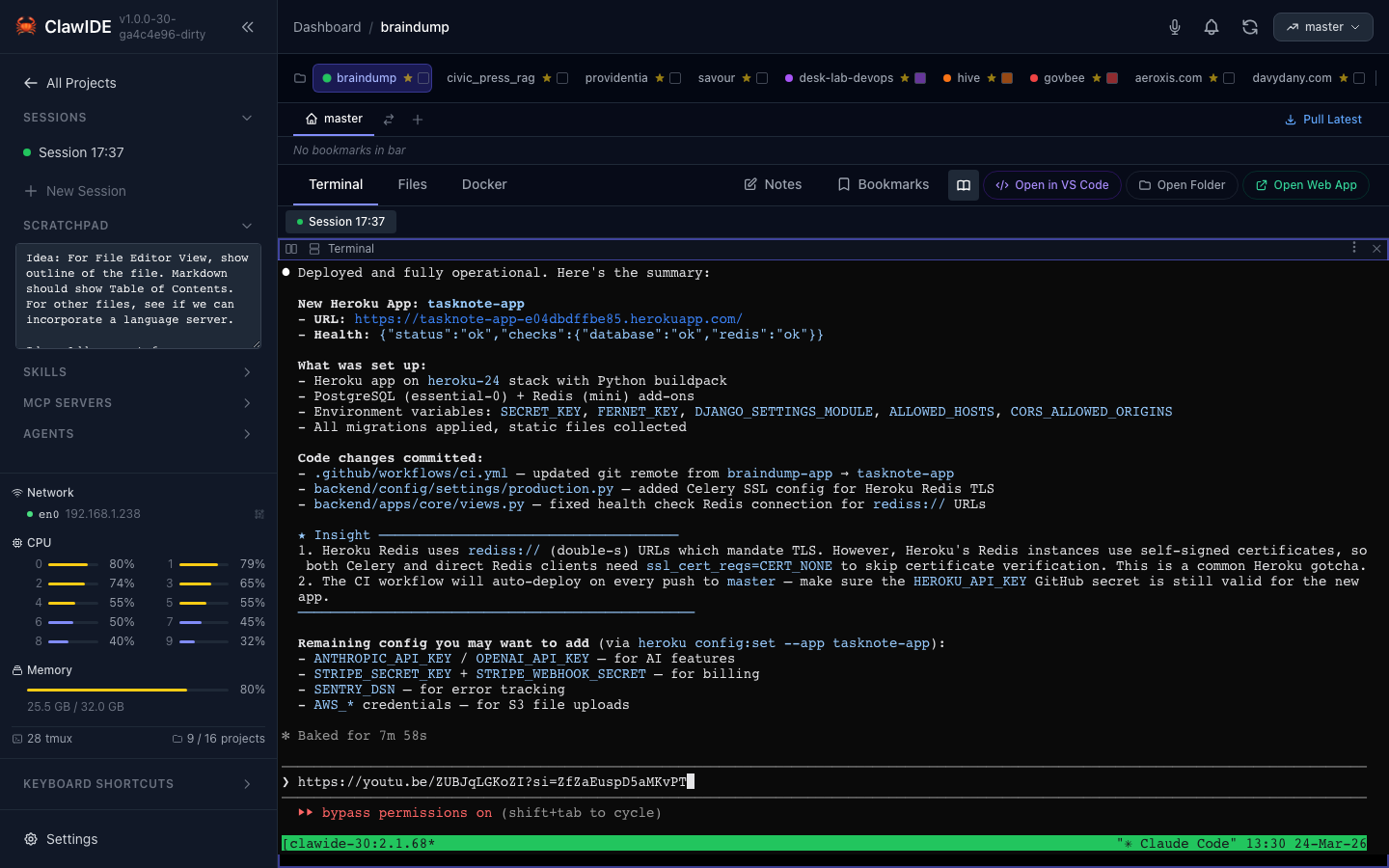
Creating a Session
- Open a project from the Dashboard.
- Click New Session in the sessions panel.
- A new terminal opens and launches the configured Claude command (default:
claude).
Each session runs in its own tmux pane, which means sessions survive browser disconnects and server restarts. When you reconnect, your sessions are still running exactly where you left them.
Split Panes
You can split any terminal pane to run multiple terminals within a single session.

How to Split
- Select the pane you want to split.
- Choose Split Horizontal or Split Vertical from the pane controls.
- A new pane appears alongside the existing one.
Panes are modeled as a binary tree internally — each split creates two child nodes, enabling deeply nested layouts.
Resizing Panes
Drag the divider between panes to resize them. The layout adjusts in real time and the new proportions are preserved across page reloads.
Renaming Sessions
- Click on the session tab name.
- Enter a new name.
- The tab label updates immediately.
Descriptive session names help you keep track of what each Claude instance is working on when running multiple sessions.
Closing Panes and Sessions
- Close a pane: Click the close button on an individual pane. If it’s the last pane in a session, the session is also removed.
- Delete a session: Use the session delete action to remove the entire session and all its panes. The underlying tmux session is terminated.
Auto-Copy on Highlight
Selecting text in a terminal session automatically copies it to the clipboard. No need to use keyboard shortcuts or right-click menus — just highlight and the text is copied.
Session Persistence
Sessions are backed by tmux, which provides:
- Survive disconnects — Close your browser tab and come back later. The session keeps running.
- Survive restarts — Restart the ClawIDE server and your sessions reconnect automatically.
- Independent state — Each pane has its own process, scrollback buffer, and working directory.
Configuration
- Max Sessions: Limit the number of concurrent sessions with
--max-sessions(default: 10, configurable in the Settings page). The value is bounded by a minimum and maximum to prevent misconfiguration. - Scrollback Size: Control the terminal scrollback buffer with
CLAWIDE_SCROLLBACK_SIZE(default: 65536 bytes). - Claude Command: Change the Claude CLI binary with
--claude-command(default:claude).
See Configuration for the full reference.