Project Wizard
The project wizard helps you scaffold new projects quickly. Choose from 15 built-in framework templates across 8 languages, generate a project using an LLM provider, or start with an empty directory.
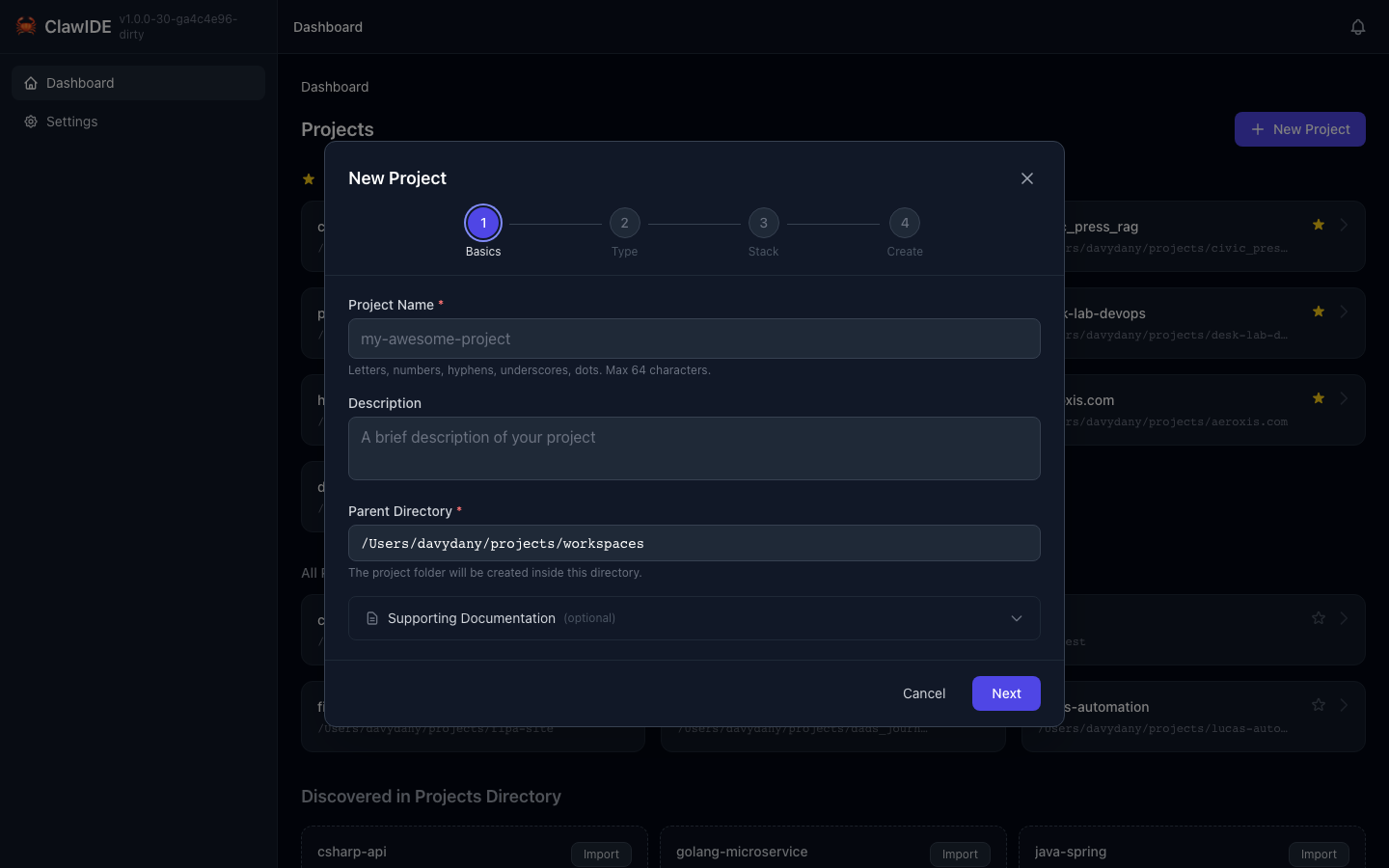
Creating a Project
- Click Create Project on the Dashboard.
- The project wizard opens with four options:
- Template — Pick from built-in framework templates
- LLM Generation — Describe your project and let an LLM scaffold it
- Clone from Git — Clone an existing repository by URL
- Empty Project — Start with a blank directory
Framework Templates
The wizard includes templates for common frameworks:
| Language | Frameworks |
|---|---|
| Go | Standard library, Chi, Gin |
| Python | Django, Flask, FastAPI |
| JavaScript | Express, Next.js |
| TypeScript | Express, NestJS |
| Rust | Actix, Axum |
| Ruby | Rails |
| Java | Spring Boot |
| PHP | Laravel |
Each template sets up the project structure, dependencies, and basic configuration files.
LLM-Powered Generation
For more customized projects:
- Select LLM Generation in the wizard.
- Configure your AI provider and model in Settings.
- Describe the project you want to create.
- The LLM generates the project structure, files, and boilerplate.
Supported Providers
- Anthropic (Claude) — Claude Sonnet, Opus, Haiku
- OpenAI — GPT-4, GPT-4o
Provider API keys and model preferences are configured in the settings page under the AI Agent CLI section.
Clone from Git
Clone an existing repository directly into your projects directory:
- Select Clone from Git in the wizard.
- Enter the repository URL (GitHub, GitLab, Gitea, or any Git remote).
- Optionally configure:
- Branch — Clone a specific branch instead of the default
- Depth — Shallow clone with limited history (useful for large repos)
- Directory Name — Override the default directory name derived from the URL
- The wizard clones the repository asynchronously and tracks progress.
The project is automatically registered in ClawIDE once cloning completes.
Empty Project
Select Empty Project to create a directory with no scaffolding. Useful when you want to start from scratch or import files manually.