Git Worktrees
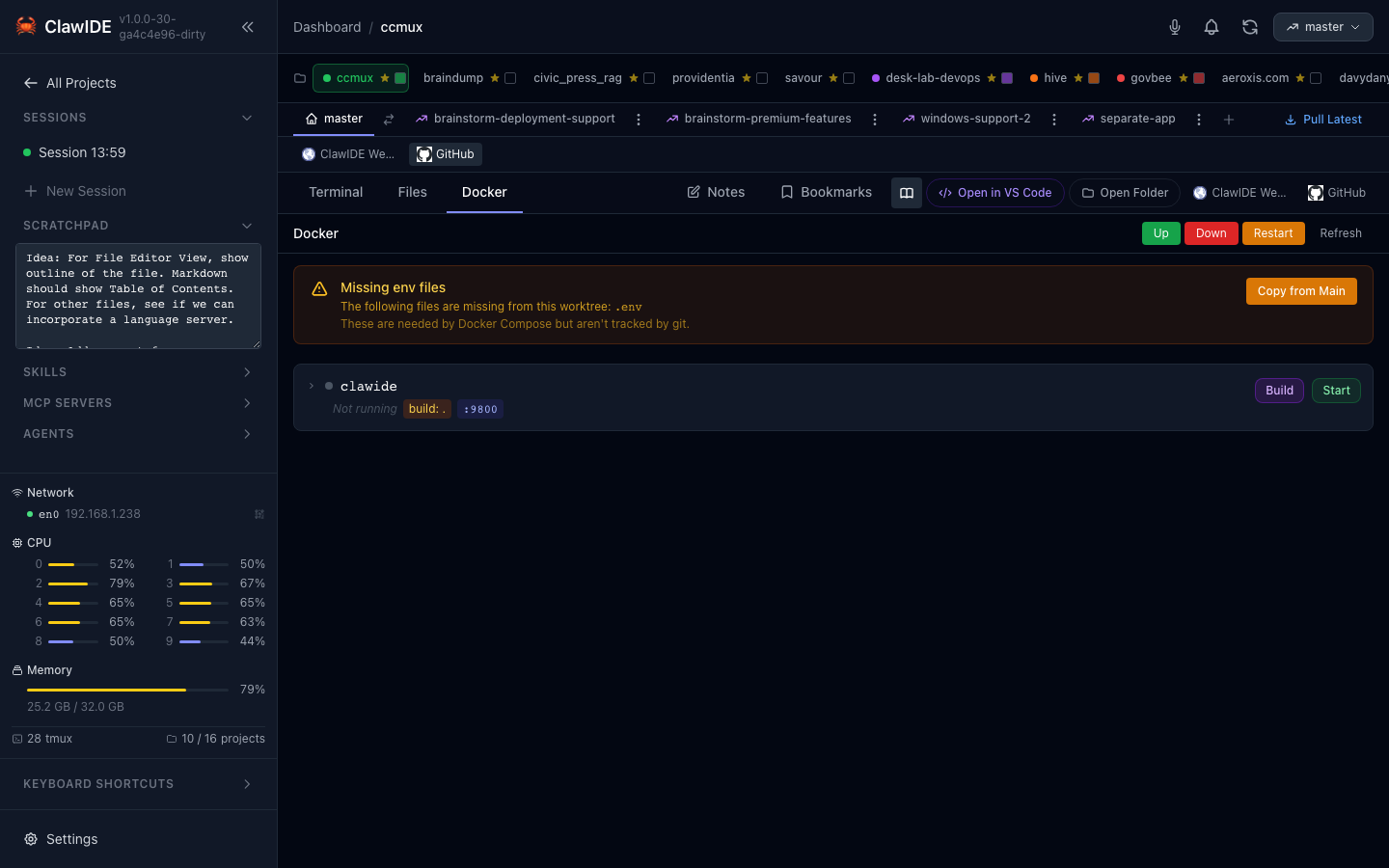
ClawIDE’s git worktree support lets you work on multiple branches simultaneously without switching back and forth. Create worktrees for different branches, bind Claude Code sessions to specific worktrees, and merge completed features back to your main branch.
What Are Git Worktrees?
Git worktrees allow you to have multiple working directories tied to the same repository, each checked out to a different branch. Instead of stashing changes and switching branches, you can have each branch checked out in its own directory and work on them in parallel.
ClawIDE makes this workflow visual and accessible through its UI.
Branch Management
Viewing Branches
- Open a project workspace.
- Navigate to the Git panel.
- ClawIDE displays all local branches for the repository.
Creating a Branch
- Click Create Branch in the Git panel.
- Enter a name for the new branch.
- The branch is created from the current HEAD.
Checking Out a Branch
Select a branch and click Checkout to switch the project’s working directory to that branch.
Worktree Lifecycle
Creating a Worktree
- Click Create Worktree in the Git panel.
- Select or create a branch for the worktree.
- ClawIDE creates a new worktree directory and registers it.
Each worktree gets its own working directory, so you can have main, feature/auth, and bugfix/login all checked out simultaneously.
Deleting a Worktree
- Select the worktree you want to remove.
- Click Delete.
- ClawIDE removes the worktree directory and unregisters it from git.
Feature Workspaces
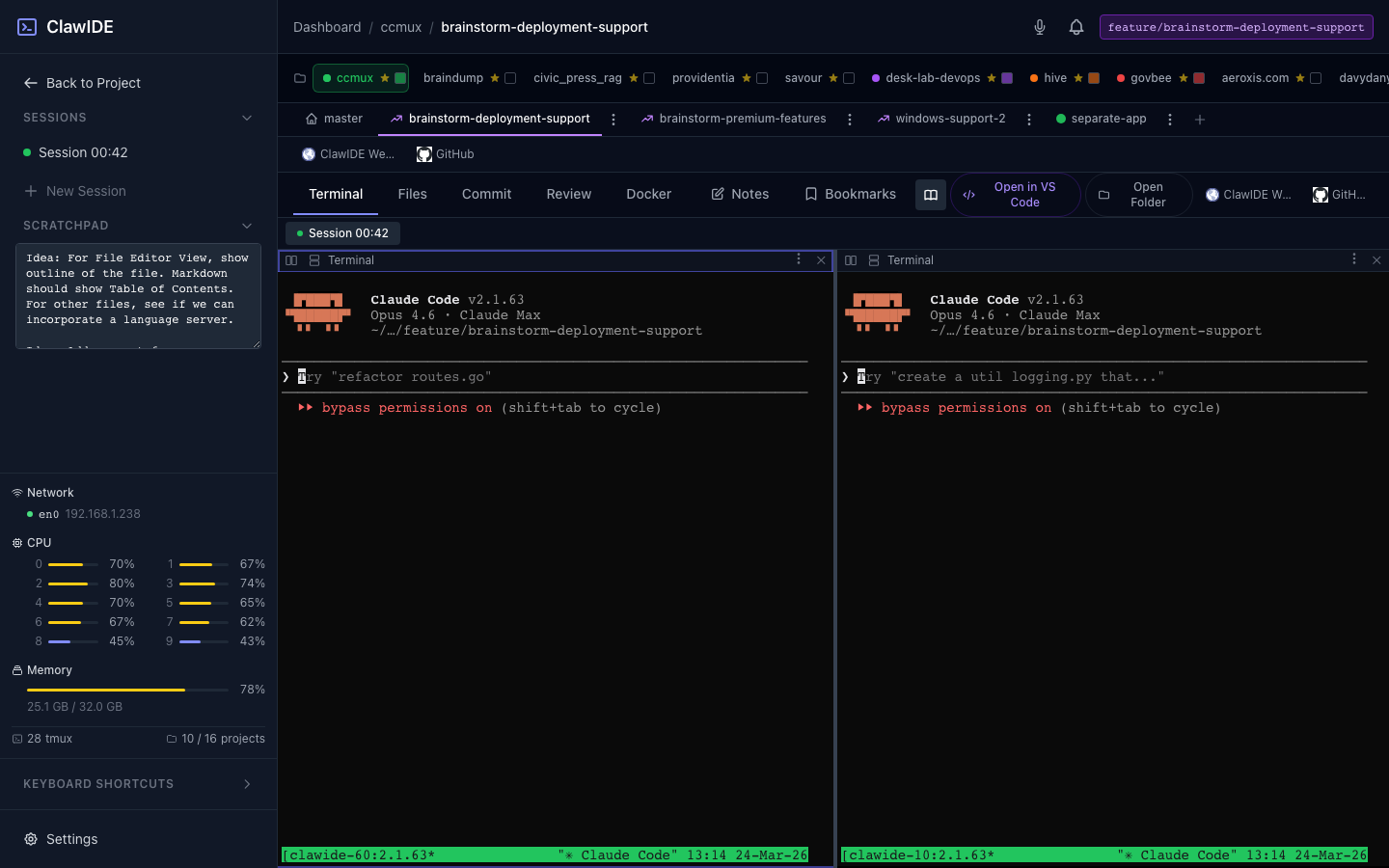
Feature workspaces combine worktrees with dedicated sessions and file browsing into a self-contained development environment for a single feature branch.
Creating a Feature Workspace
- Click New Feature in the project workspace.
- A new worktree and workspace are created for the feature branch.
- The workspace includes its own terminal sessions, file browser, and git operations scoped to the feature branch.
Working in a Feature Workspace
Within a feature workspace, you can:
- Create sessions — Terminal sessions run in the worktree directory
- Browse files — The file browser shows the worktree’s file tree
- View git status — See changed files specific to this branch
- Commit changes — Stage and commit directly from the workspace
Merging a Feature
When your feature is complete:
- Open the feature workspace.
- Click Merge to merge the feature branch back into the parent branch.
- ClawIDE handles the merge operation and reports the result.
Deleting a Feature
- Select the feature workspace.
- Click Delete to remove the feature, its worktree, and associated sessions.
API
| Endpoint | Method | Description |
|---|---|---|
/projects/{id}/api/worktrees | GET | List all worktrees |
/projects/{id}/api/worktrees | POST | Create a new worktree |
/projects/{id}/api/worktrees/{wid} | DELETE | Delete a worktree |
/projects/{id}/api/branches | GET | List all branches |
/projects/{id}/api/branches | POST | Create a new branch |
/projects/{id}/api/checkout | POST | Checkout a branch |
/projects/{id}/features/ | POST | Create a feature workspace |
/projects/{id}/features/{fid}/ | GET | Open a feature workspace |
/projects/{id}/features/{fid}/ | DELETE | Delete a feature workspace |
See the API Reference for full details.