File Editor
ClawIDE includes a built-in file browser and code editor, so you can view and modify project files without leaving the IDE.
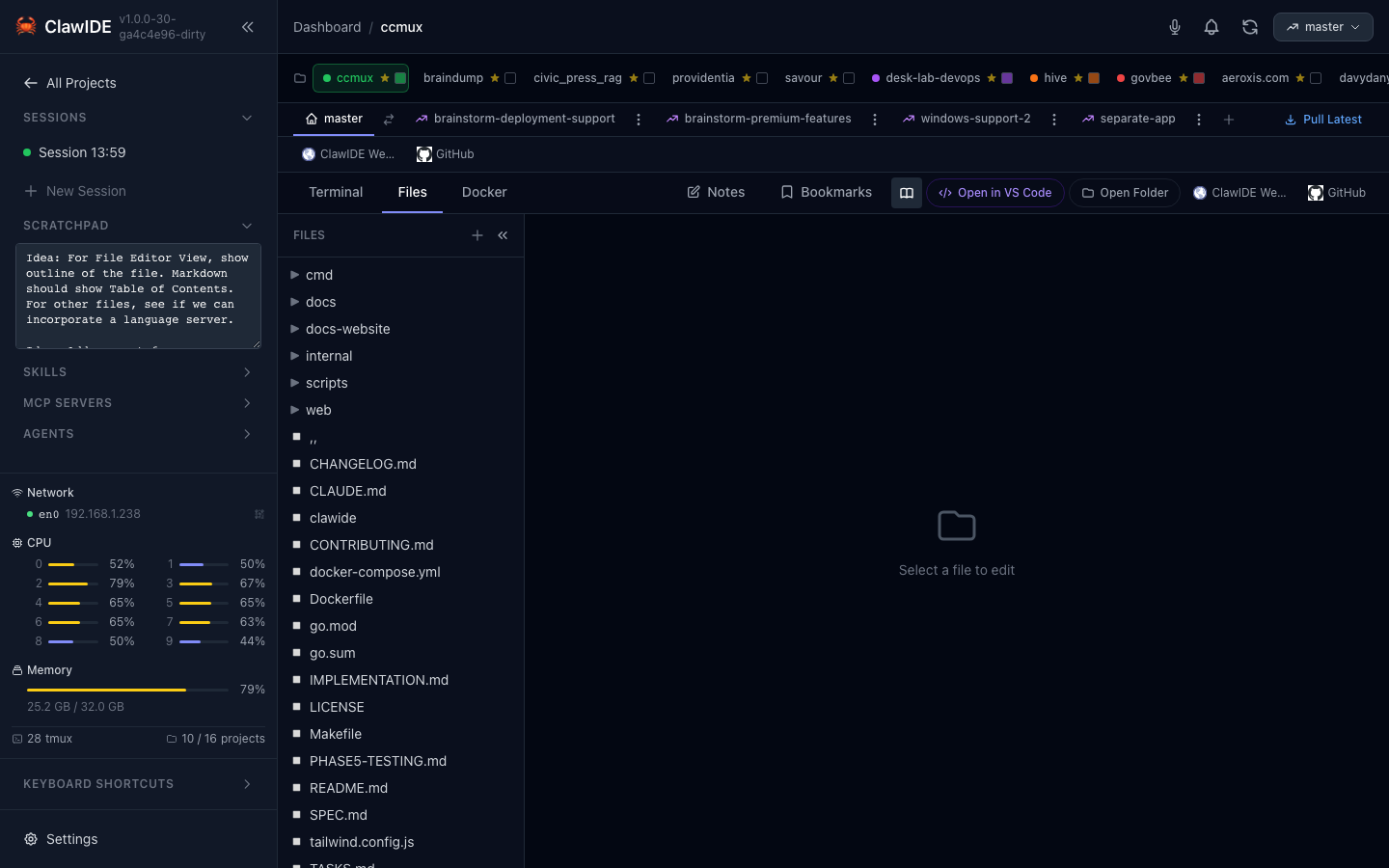
File Browser
The file browser displays your project’s directory structure as a tree. It uses lazy loading — directories are expanded on demand rather than loading the entire tree at once, keeping the UI responsive for large projects.
Navigating Files
- Open a project workspace from the Dashboard.
- The file browser panel shows the project’s root directory.
- Click on directories to expand them and reveal their contents.
- Click on a file to open it in the editor.
Creating Files and Folders
Right-click in the file tree (or use the toolbar buttons) to create new files or folders directly from the UI. Enter a name and the file or directory is created on disk immediately.
Collapse/Expand Toggle
Use the collapse/expand toggle button in the file tree toolbar to collapse all expanded directories at once, or expand them back. Useful for resetting the tree view in large projects.
Code Editor
Files open in a CodeMirror 6 editor with the following capabilities:
- Syntax Highlighting — Automatic language detection based on file extension, with syntax highlighting for common languages including Go, JavaScript, TypeScript, Python, HTML, CSS, JSON, YAML, Markdown, and more.
- Line Numbers — Displayed in the gutter for easy reference.
- Search and Replace — Built-in CodeMirror search functionality.
- Responsive Layout — The editor adapts to available screen space, working well on both desktop and mobile.
Editing and Saving Files
- Click on a file in the tree to open it in the editor.
- Make your changes directly in the editor.
- Save the file using the save action.
- The file is written back to disk via the file write API.
API
The file editor is powered by three API endpoints:
| Endpoint | Method | Description |
|---|---|---|
/projects/{id}/api/files | GET | List files and directories |
/projects/{id}/api/file | GET | Read a file’s contents |
/projects/{id}/api/file | PUT | Write (save) a file |
These same endpoints are available within feature workspaces under /projects/{id}/features/{fid}/api/files and /projects/{id}/features/{fid}/api/file.
See the API Reference for full details.