Feature Workspaces
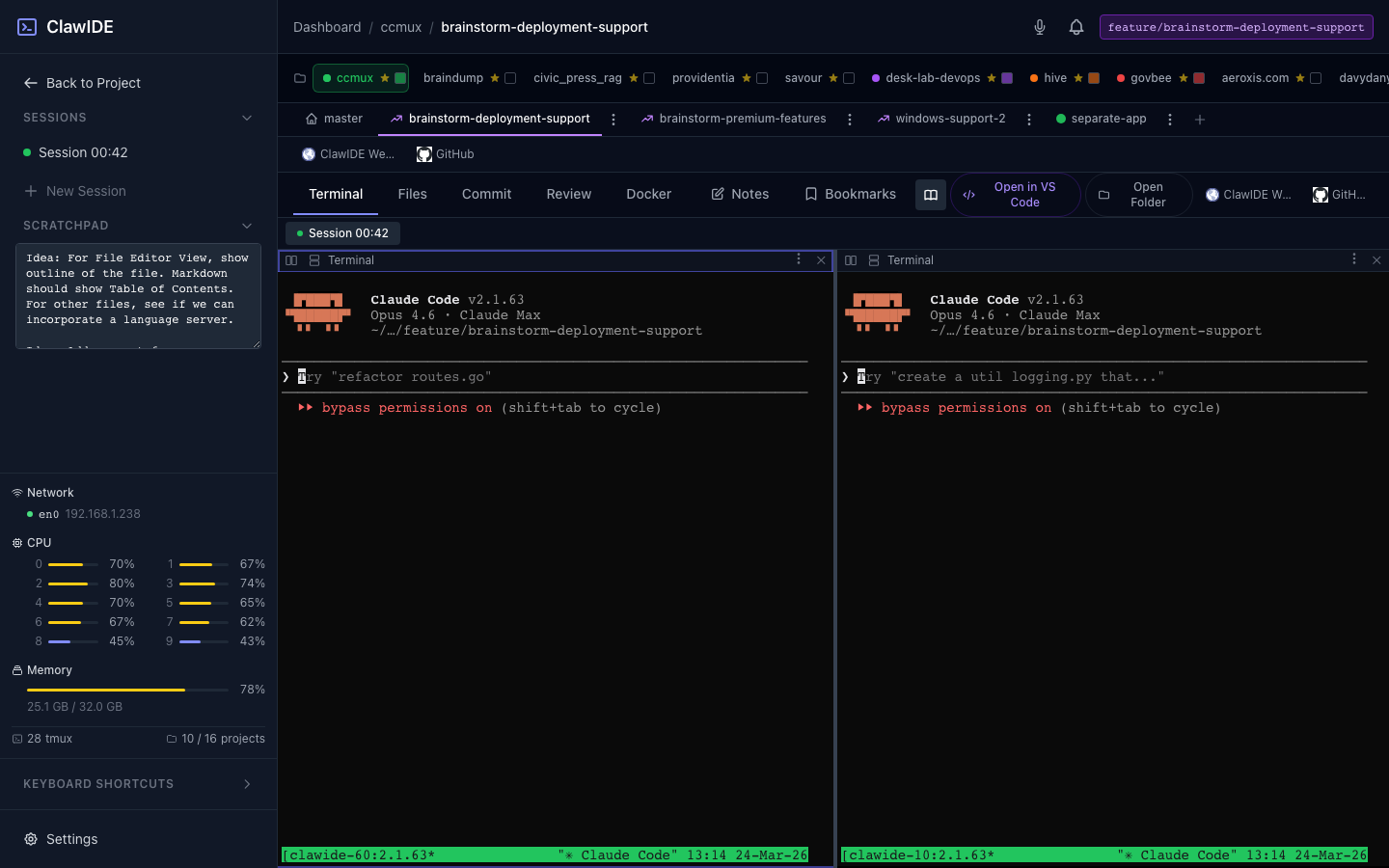
Feature workspaces give each feature its own isolated environment — a git branch, worktree, terminal sessions, file browser, Docker stack, and merge review — all scoped to a single unit of work. When the feature is done, merge it back with a side-by-side diff review.
How It Works
Each feature workspace is backed by a git worktree. When you create a feature, ClawIDE:
- Creates a new branch from the current HEAD.
- Creates a git worktree checked out to that branch.
- Assigns a color for visual identification.
- Sets up an isolated workspace with its own tabs for sessions, files, Docker, and more.
This means you can work on multiple features simultaneously without stashing or switching branches.
Creating a Feature Workspace
- Open a project from the Dashboard.
- Click New Feature in the project workspace.
- Enter a name for the feature.
- ClawIDE creates the branch, worktree, and workspace automatically.
The feature appears in the sidebar with its assigned color.
Working in a Feature Workspace
Within a feature workspace, you have access to:
- Terminal Sessions — Sessions run in the feature’s worktree directory, isolated from other features and the main branch.
- File Browser — Shows only the files in this feature’s worktree.
- Git Status — See changed files specific to this branch.
- Docker — Run a Docker Compose stack scoped to this feature. Each feature can have its own running containers.
- Scratchpad — A per-feature scratch area for notes and quick text.
Color-Coding
Each feature workspace is assigned a color. The color appears on the feature tab, sidebar entry, and throughout the workspace UI. Projects also have their own color, making it easy to distinguish which project and feature you’re working in.
Switching Between Features
Click on any feature in the sidebar to switch to its workspace. Each feature maintains its own state — open files, terminal sessions, and Docker containers persist independently.
Merging a Feature
When your feature is complete:
- Open the feature workspace.
- Navigate to the Merge Review tab.
- Review changes in the side-by-side diff viewer.
- Click Merge to merge the feature branch back into the parent branch.
- ClawIDE handles the merge and reports the result.
Deleting a Feature
- Select the feature workspace.
- Click Delete to remove the feature, its worktree, branch, and associated sessions.
API
| Endpoint | Method | Description |
|---|---|---|
/projects/{id}/features/ | POST | Create a feature workspace |
/projects/{id}/features/{fid}/ | GET | Open a feature workspace |
/projects/{id}/features/{fid}/ | DELETE | Delete a feature workspace |
See the API Reference for full details.