Bookmarks
Bookmarks let you save useful URLs for each project — documentation links, staging environments, CI dashboards, or anything else you reference frequently. Each bookmark can have an emoji label and be starred for quick access.
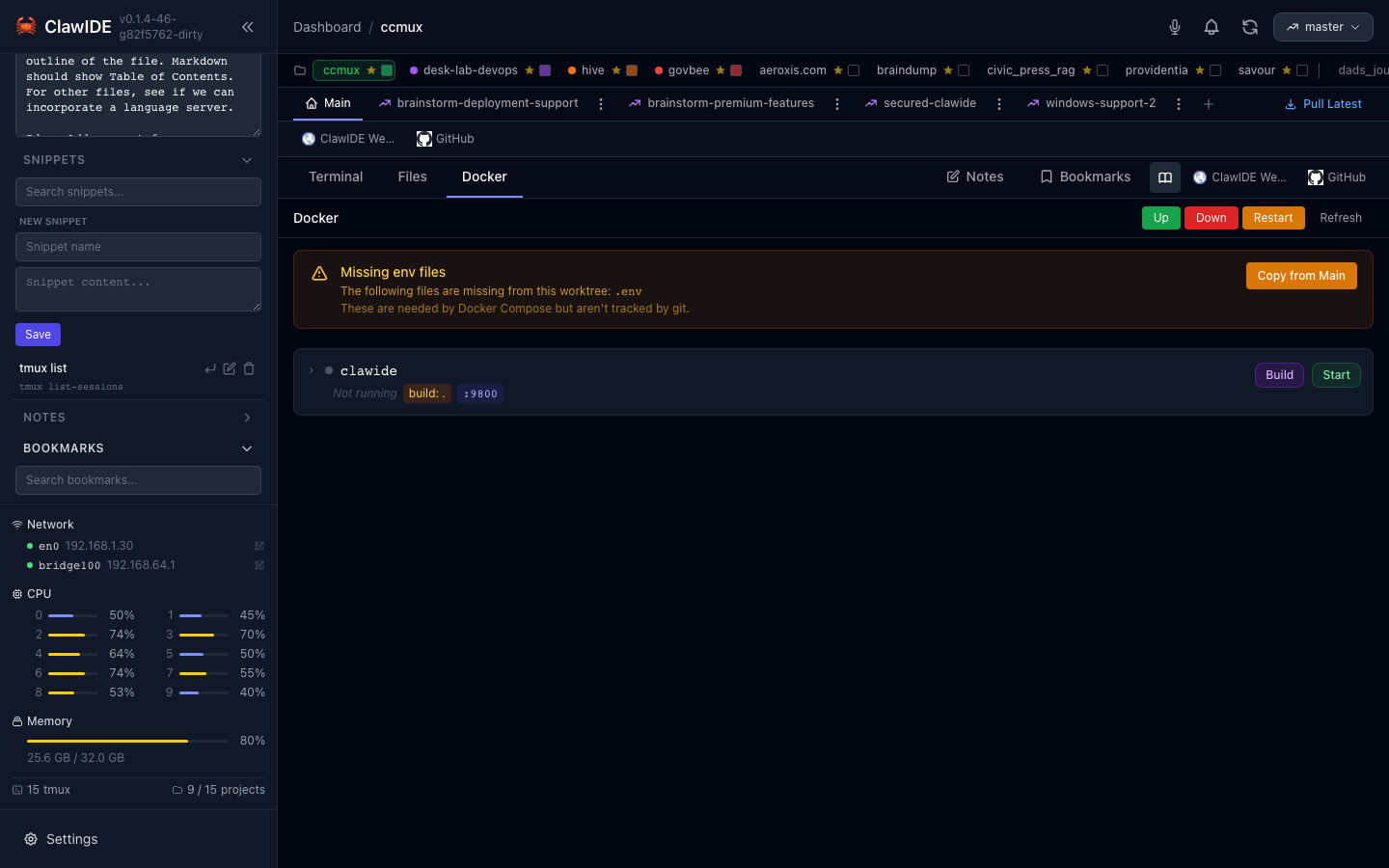
Adding a Bookmark
- Open the bookmarks panel in your project workspace.
- Click Add Bookmark.
- Enter a name and URL for the bookmark.
- Optionally add an emoji label for visual identification.
- Save the bookmark.
ClawIDE automatically fetches a favicon for each bookmark URL.
Bookmarks Bar
Root-level bookmarks (those not in any folder) automatically populate the bookmarks bar at the top of the workspace. This gives you one-click access to your most-used links without opening the full bookmarks panel.
Emoji Labels
Add an emoji to any bookmark for quick visual identification. For example, use a rocket for your deployment dashboard or a book for documentation links.
Searching Bookmarks
Use the search bar to filter bookmarks by name or URL. The search is case-insensitive and updates results as you type.
Editing and Deleting
- Click on a bookmark to edit its name, URL, or emoji.
- Click the delete button to permanently remove a bookmark.
API
Bookmark endpoints are scoped to a project via the project_id query parameter.
| Endpoint | Method | Description |
|---|---|---|
/api/bookmarks?project_id={projectID} | GET | List all bookmarks for a project |
/api/bookmarks?project_id={projectID}&q={query} | GET | Search bookmarks by name or URL |
/api/bookmarks | POST | Create a new bookmark |
/api/bookmarks/{bookmarkID} | PUT | Update a bookmark |
/api/bookmarks/{bookmarkID} | DELETE | Delete a bookmark |
/api/bookmarks/{bookmarkID}/star | PATCH | Toggle starred status |
See the API Reference for full details.